This is a comprehensive step by step guide on how to export your NGW to Trustwallet, kindly follow the steps accordingly.
Step 1: Open your NGW, navigate to settings and tap on Addresses.

Step 2: Tap on three dot on the EVM address and copy the private key and confirm by clicking Ok.

Step 3: Now, proceed to your Trustwallet, open and tap on “I already have a Wallet” then select private key to confirm you’re exporting with private key.

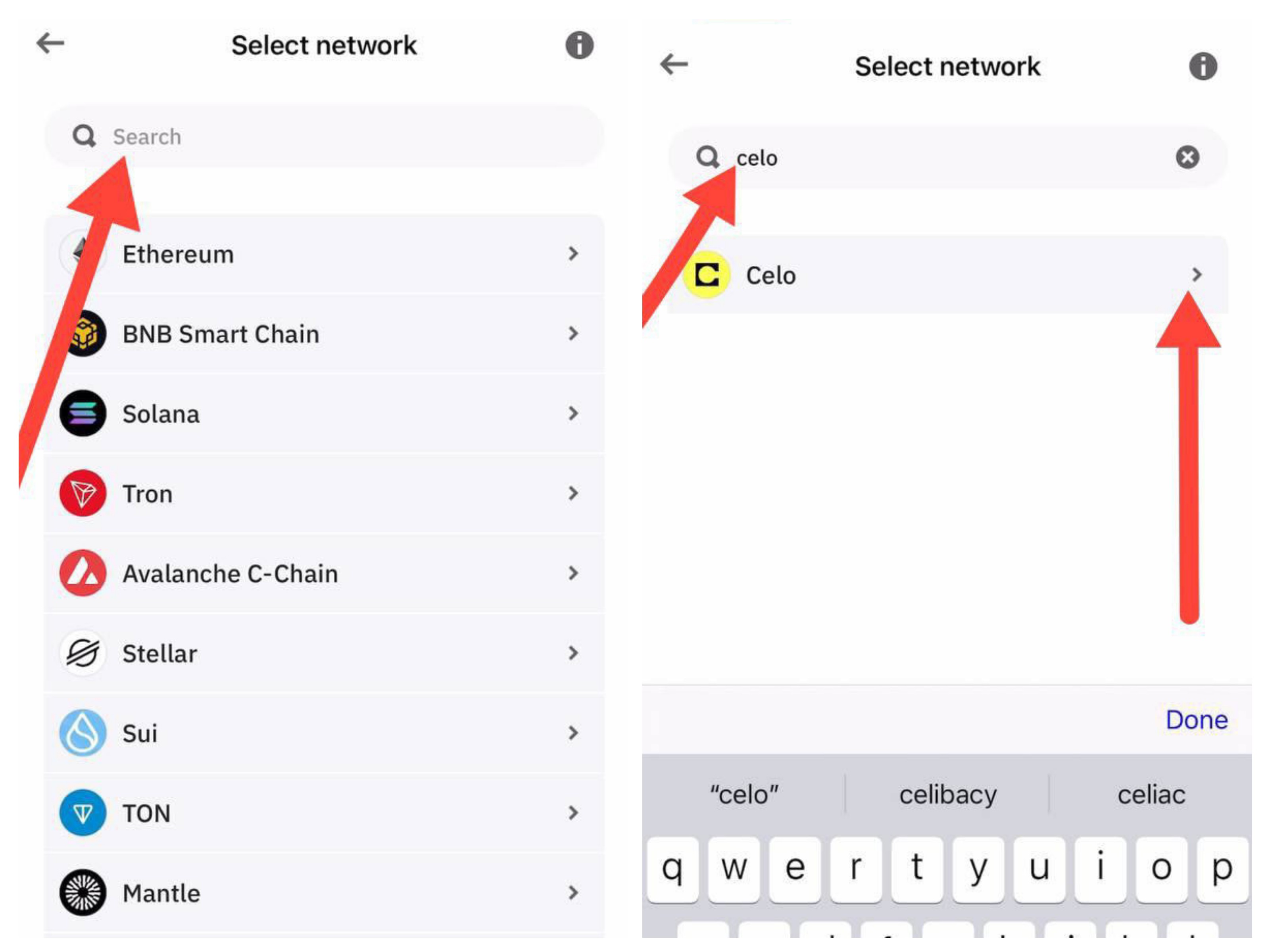
Step 4: Next is to select the network you’re exporting on, which is Celo. Type Celo on the search bar and proceed.
Step 5: Next is to paste your private key in the space provided and tap on “Restore Wallet”

Step 6: Boom, you’ve successfully imported your wallet, tap on “Skip, I’ll do it later” and proceed to your wallet dashboard.

- Now, Let’s Import G$ token:
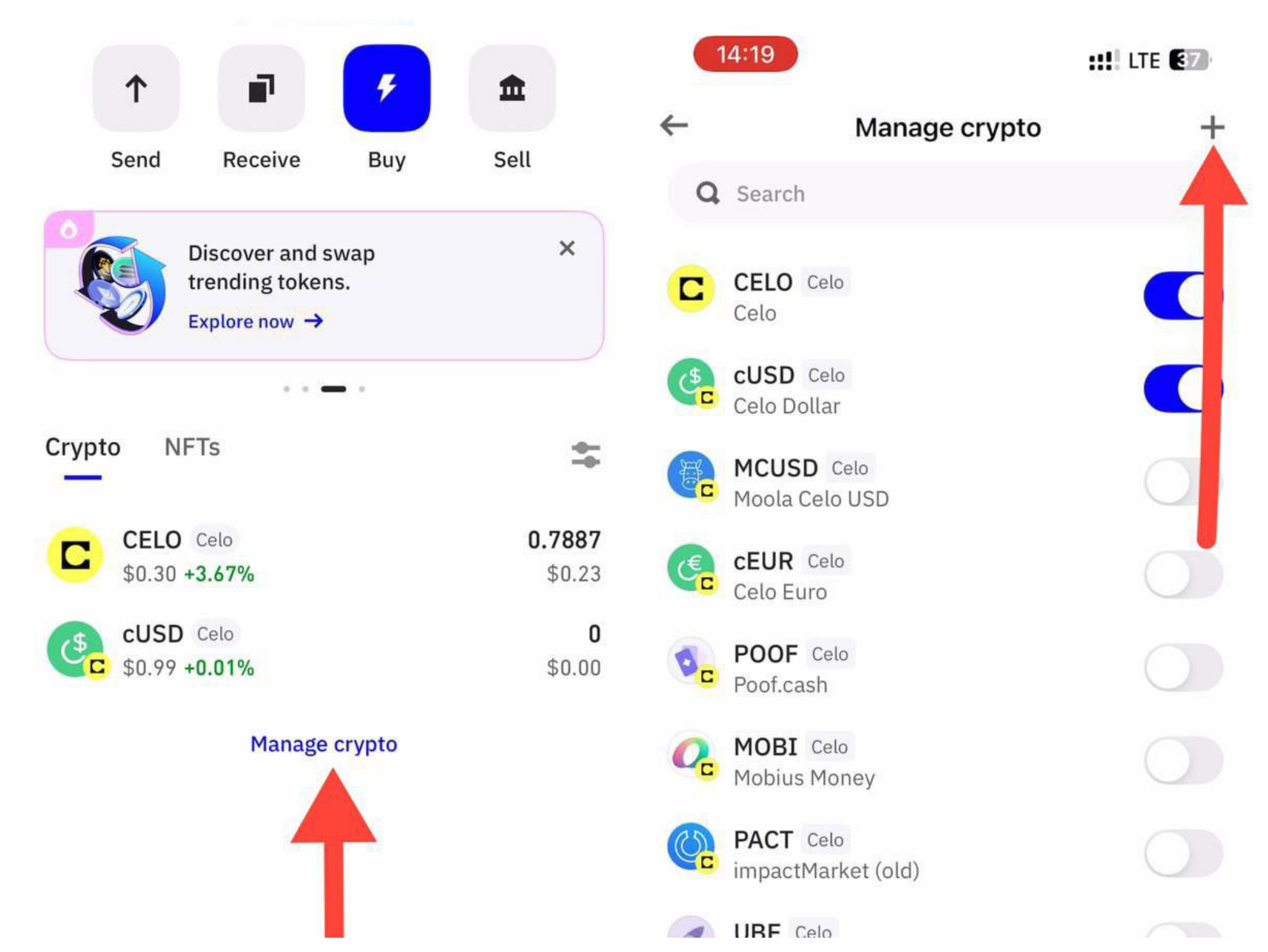
Step 7: Tap on “Manage Assets” and tap on the + sign on the next section.
Step 8: Copy and Paste the G$ Celo contract address to the space shown, the token details will automatically show up and proceed to import. Here is G$ Celo contract address: 0x62B8B11039FcfE5aB0C56E502b1C372A3d2a9c7A
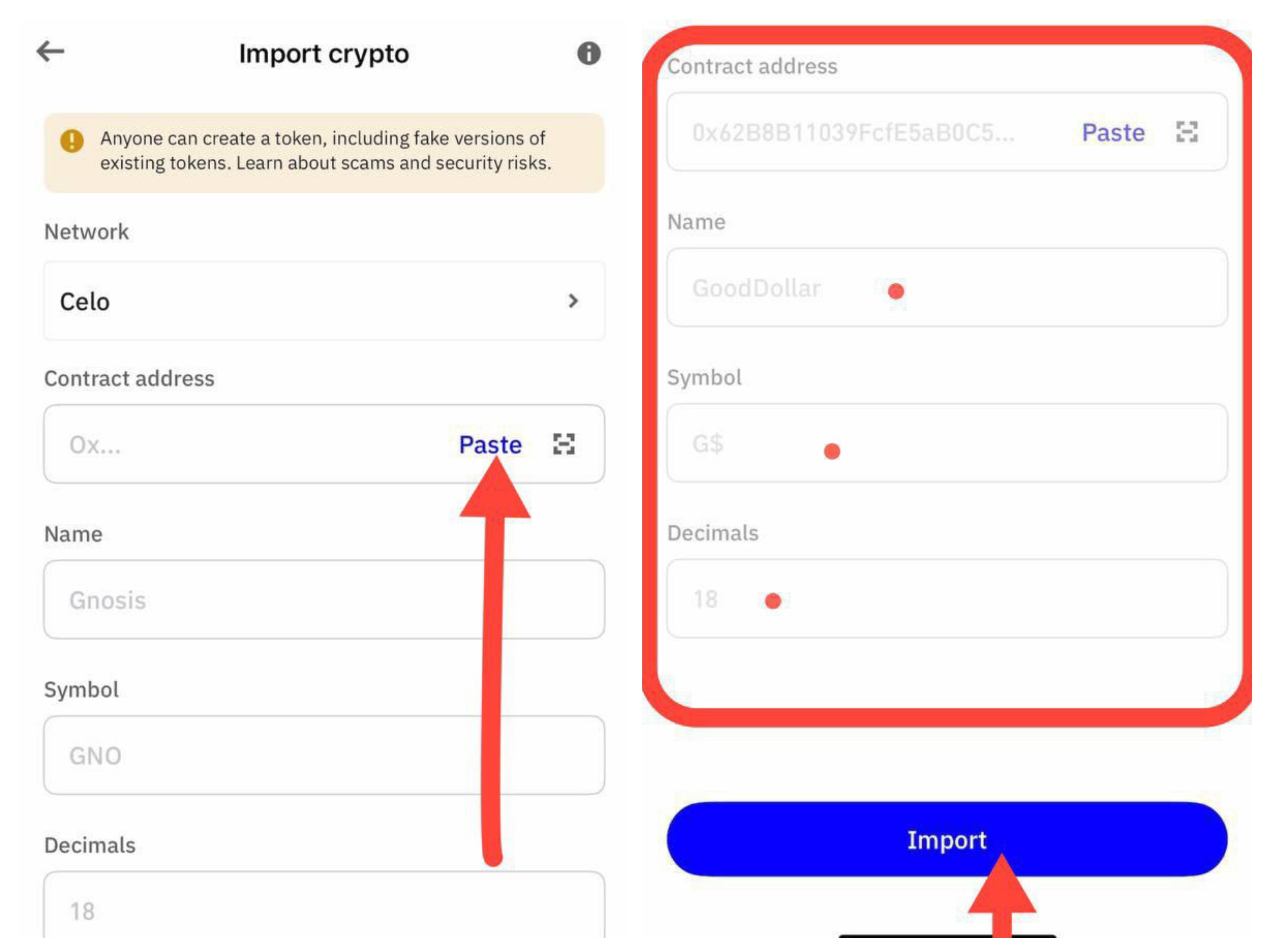
Step 8: Boom, you’ve successfully imported G$ token to your Trustwallet, your G$ balance is expected to reflect in your Trustwallet as shown in the image below.

 This is a comprehensive video guide on how to export your GoodWallet to Metamask, kindly watch the steps accordingly.
Exporting GoodWallet to Metamask mp4
We believe you find this guide helpful, you can drop questions or suggestions on this thread.
Happy Exporting!!!